Accessing the Site
How do I access the site?
Log in to your
Online Resources. Click on “FPL Digital” in your top navigation bar or on your My Products page. This will take you directly to FPL Digital.
How do students access the site?
Students will go to a separate link (copied by you from FPL Digital once you create groups) and login with a username and password of your choice.
How do I send log-in information to students?
You can send an email to your students with this information or post it in your online classroom platform.
Navigating the Site
What is the teacher dashboard?
The teacher dashboard is your FPL Digital “home.” From the teacher dashboard, teachers can add/create groups, manage access to groups, add books, and manage student access.
What is the student dashboard?
The student dashboard is where students will find their group and the guided reading books assigned to their group by you.
Do logins time-out after inactivity?
Yes, for teachers, your login will time out after 60 minutes of inactivity.
Yes, for students, their login will time out after 15 minutes of inactivity.
How many students can be logged in at a time?
Up to 30 students can be logged in per teacher subscription.
What is the Student Roster feature in the navigation bar?
The student roster is an introductory roster management feature. With the student roster feature you can:
- Manage your guided reading groups with this introductory student rostering feature with account privacy
- Create/maintain a roster for up to 30 active students (names can be updated/deleted at any time)
- Assign students to guided reading groups
- Identify basic information for each student including name, display name, email and associated avatar (optional)
Subscriptions
How do FPL Digital subscriptions work?
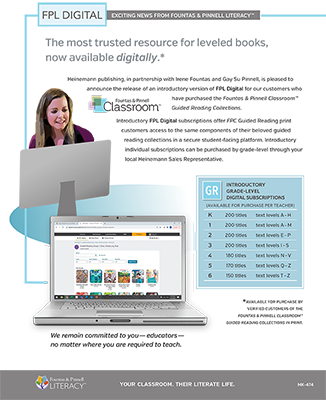
- FPL Digital: FPC Guided Reading Subscriptions are available for each grade level collection for our verified print customers. Each subscription is set up to be used by one teacher and up to 30 of their own students. Note that subscriptions are available per teacher through your Heinemann Sales Representative and are not sharable or transferable.
- Subscriptions are fulfilled by email. Each school or district must designate a Subscription Delivery Recipient who will be responsible for receiving, distributing, and managing the school or district�s subscriptions. It is essential that Heinemann receive name, email address, and phone number for the person who will be responsible for distributing subscription codes (Subscription Delivery Recipient) in order to fulfill orders.
- Subscription codes will be set up and provided to allow the number of individual seats purchased (e.g. If a school orders FPL Digital for grade 1 for three teachers and grade 3 for four teachers, they will receive one subscription code for FPL Digital, grade 1 for three individual seats and one subscription code for FPL Digital, grade 3 for four individual seats.)
- Then, each teacher will use their assigned subscription code(s) to register their resource(s) in their individual FPL Online Resources account.
Once an order has been placed, how do schools/districts distribute the subscription codes to the individual teachers for whom the subscriptions were purchased for?
- Once your FPL Digital order is processed, the identified Subscription Delivery Recipient whose email address was provided on your order form will receive an order confirmation email listing all the subscription codes for the subscriptions your school or district ordered along with information indicating how many individual seats each code includes based on your purchase. DO NOT TEST THE CODES UNLESS YOU ARE MEANT TO BE THE END USER OF THE SUBSCRIPTION.
- Please note that this confirmation email contains the codes for ALL subscriptions purchased, so the email must not be forwarded to all teachers.
- Instead, you can copy/paste the applicable subscription codes for each teacher into a separate email for each teacher for whom an individual subscription seat was purchased.
What important information should I know about the FPL Digital subscriptions?
- FPL Digital: Introductory Fountas & Pinnell Classroom™ Guided Reading Subscriptions are a temporary model with temporary rates.
- Subscriptions are not shareable. Each subscription includes access to resources for one teacher and up to 30 of that teacher’s own students.
- TEACHERS MUST HAVE AN INDIVIDUAL ONLINE RESOURCES ACCOUNT IN ORDER TO ACCESS FPL DIGITAL.
- Schools / Districts subscription eligibility is based on the print materials owned. FPL Digital: Introductory FPC Guided Reading subscriptions are ONLY available to users of the FPC Guided Reading print collections.
- Temporary, introductory prices (available through your Heinemann Sales Representative) reflect an introductory school price and are subject to change without notice.
- Any exchanges MUST be made within 30 days of receipt of subscription and are dependent on the print materials owned. No exchanges will be honored after 30 days. No returns are permitted on subscriptions.
Setting Up and Managing Groups
How do I set up groups?
To create a new group, click the “Add” button. This will take you to the group details screen. Here you will set the group name, a brief description for your group, a username and password for students to access the site and select Guided Reading from the product type drop down menu. You can also upload an image to be displayed as part of the group on the dashboard. Once finished, click “save.” You will be redirected back to your teacher dashboard.
How do I edit or delete a group?
From your teacher dashboard, you can add additional groups or manage any existing groups. To view details about existing groups, click on a group. This will take you to the group view page. The top section of the page displays the group detail information including the group name, the username and password required for student access, the link to share with students, and an “Edit Details” option. Here is where you can make changes to the group details or remove a group by clicking on “Delete Group.” A confirmation box will appear to confirm prior to the deletion.
How do I add my students to a group?
Currently, the site is not setup to roster individual students, but rather to setup groups of students. You can add student names to the “Name” or “Description” of each group, or you can title each group more generically and simply tell students which group they are in. When you click the “Add” button on the dashboard, the first field is the title or “Name” of the group. This is where you can use student names or pseudonyms for the group title.
Can I roster students?
Yes, with the student roster feature you can:
- Manage your guided reading groups with this introductory student rostering feature with account privacy
- Create/maintain a roster for up to 30 active students (names can be updated/deleted at any time)
- Assign students to guided reading groups
- Identify basic information for each student including name, display name, email and associated avatar (optional)
Managing Usernames and Passwords
Do I set the username and password?
Yes, you set each group’s username and password. From your teacher dashboard you can add or edit a group via the group details screen. When setting up a group, you will be prompted to create a username and password. You can also edit an established groups username and password via the group details screen by clicking on “Edit Details” at the top of that screen.
Can I reset the (group/student) username and password at any time?
Yes, from your teacher dashboard click on the group you want to reset the username and password for. This will take you to the group details screen. Click on “Edit Details” at the top of the screen. Here you can edit the group details, including the username and password.
Managing Your Book Collection
How do I add a book into a group?
To assign books to groups, click on a group tile to access the group view page. The bottom section of the Group View page is where you will add books to the group. To add a book to a group, click “+Add.” Each book in your guided reading collection will appear. To assign a book to a group, click the “plus sign” in the top right corner of the book. The book will automatically be added. When you are finished adding books to the group, click the back arrow or breadcrumb back to the group view page. NOTE: Books can only be added to 1 group at a time.
How do I collect the books back from a group?
In the “Manage Books” section on your group details place, click the “Collect All Copies” button to collect every book assigned to this group or click the “Collect Selected Copies” to collect a specific selected book.
Can I search/filter my book collection?
Yes, you can filter by text level, genre/subgenre, set/series and/or keywords, as well as a general search to filter and find the titles you need faster.
What does the message “This book is unavailable.” mean in the student dashboard?
If the book is already assigned to a group and all copies are checked out, students will see this message.
Are the books responsive to a mobile device?
Yes, FPL Digital is responsive, meaning the books will open and display (respond) based on the size of the screen/device you are using.
How many copies of each title do I have in my digital collection?
There are 6-copies per guided reading title in your digital collection.
How do I access my lesson plans and general resources in Online Resources?
Head over to Fountas & Pinnell Online Resources by clicking the Online Resources tab at the very top of the page. You may wish to open another browser window when you do this, so that you can see information in both sites at once.